Google Search Console Connection
In short: we send you a link. You tap it, choose your Google account and tap Continue. That lets us look at your website's numbers from Google. We can never change anything. You can take our access away at any time.
On This Page
What Is Google Search Console?
Google Search Console is a free tool from Google. Think of it as your website's report card from Google.
It shows things only Google knows:
- How many times your website showed up when people searched on Google.
- How many of those people clicked on it.
- The words people typed to find you, like "plumber near me".
- Which of your pages Google has saved and can show, and which ones it cannot.
- Problems Google found on your website.
Only the owner of the website, and the people the owner allows, can see this report card. Most businesses already have one. It is often set up by whoever built the website.
Google keeps your website's numbers in Search Console.
You allow us to look at them. Look only, never change.
We watch them every day and tell you, in plain words, what to fix.
Why We Ask You to Connect It
Our own tools check your website from the outside, the way Google does. That is useful, but it is still a guess. Search Console is the only place where Google tells the truth about your website.
With the connection, we can:
- Catch problems early. If your home page drops out of Google, our team gets an alert within a day. We can fix it before you lose calls.
- Show you real results. Our reports show how many people found you on Google, not estimates.
- Know what to fix first. We see which pages bring you customers and which ones Google has trouble with.
We read your numbers once a day. Only our own team sees them, and we share them with you.
Before You Start
You only need a few things:
- About 2 minutes. You can use your phone or a computer.
- Our email (or text message) with the link. Look for an email from The Equation Agency LLC.
- The Google account (often a Gmail address) that has your website in Search Console.
Not sure which Google account it is? Search your email for "Search Console". Google sends its messages to that account. You can also ask whoever built your website. Or call us and we will figure it out together.
We will never ask for your Google password. If Google asks for it during the steps below, you are typing it on Google's own page. We never see it.
Step by Step, With Pictures
Here is exactly what you will see. The pictures show a sample website, "yourwebsite.com". On your screen, you will see your own website's name.
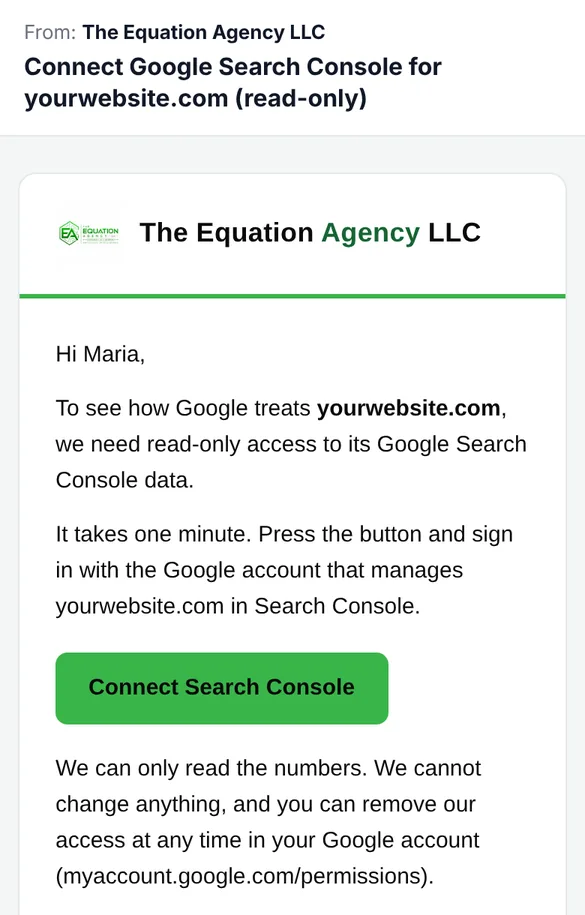
Open our email and tap the green button
The email comes from The Equation Agency LLC. The subject says "Connect Google Search Console for" and then your website's name.
Tap the green Connect Search Console button.
Got the link by text message? Just tap the link in the text. It does the same thing.
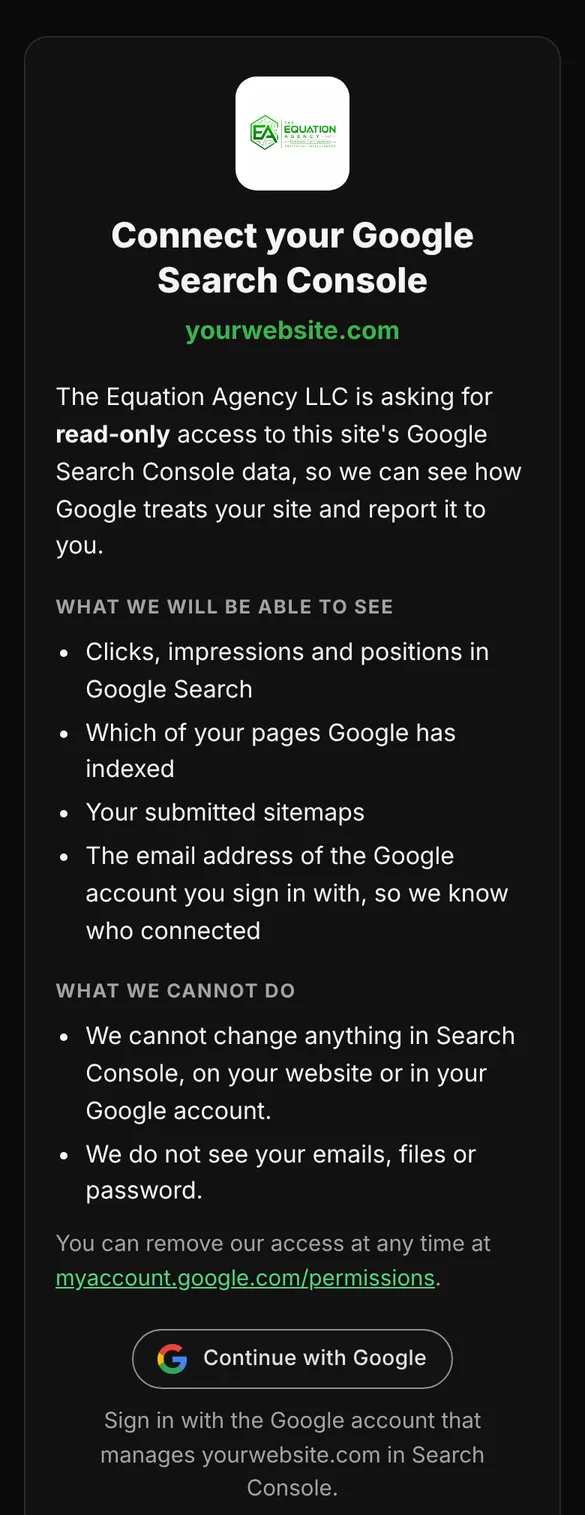
Read our page, then tap "Continue with Google"
The link opens a page from us. Your website's name is shown in green under the title.
The page lists what we will be able to see and what we cannot do. When you are ready, tap Continue with Google.
Did Google say "this browser is not supported"? That happens when a link opens inside another app, like Instagram, Facebook or some email apps. Copy the link and open it in Safari (iPhone) or Chrome (Android or computer).
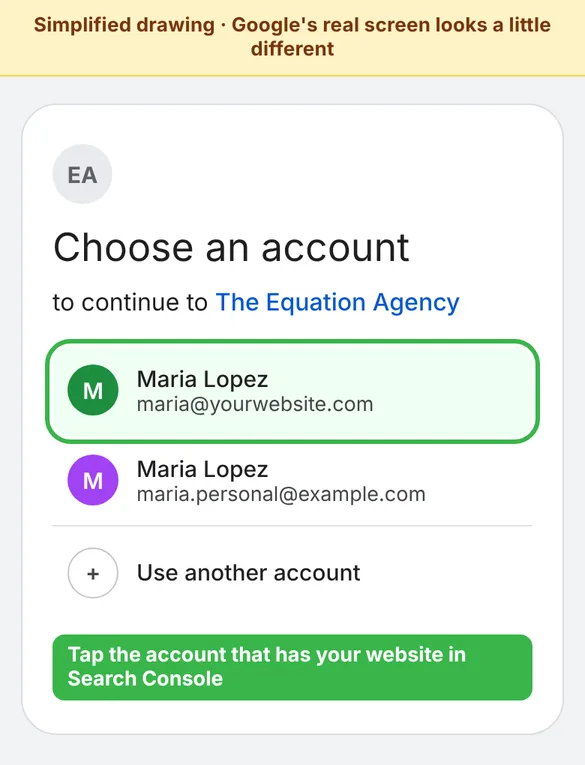
Choose your Google account
Now you are on Google's own page. Google asks which account to use.
Tap the account that has your website in Search Console. If you do not see it, tap Use another account and sign in.
Google may ask for your password or send a code to your phone. That is normal. It is Google checking that it is really you. We never see any of it.
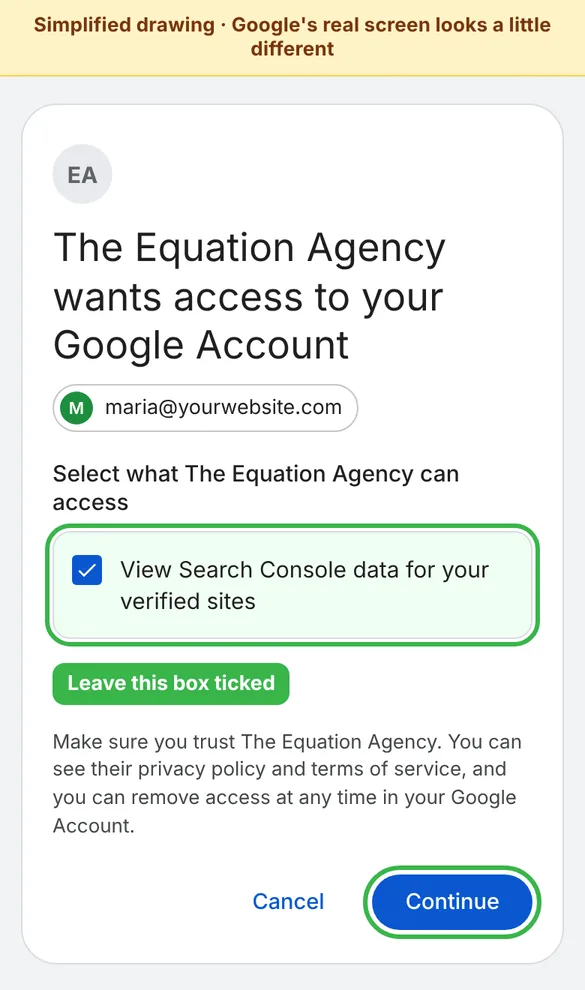
Leave the box ticked and tap "Continue"
Google asks if The Equation Agency may access your account. It shows one box: "View Search Console data for your verified sites."
"View" means look only. Leave that box ticked and tap Continue.
If you untick the box, nothing is shared, and our page will say "Search Console access was not allowed". Just open the link again and leave the box ticked.
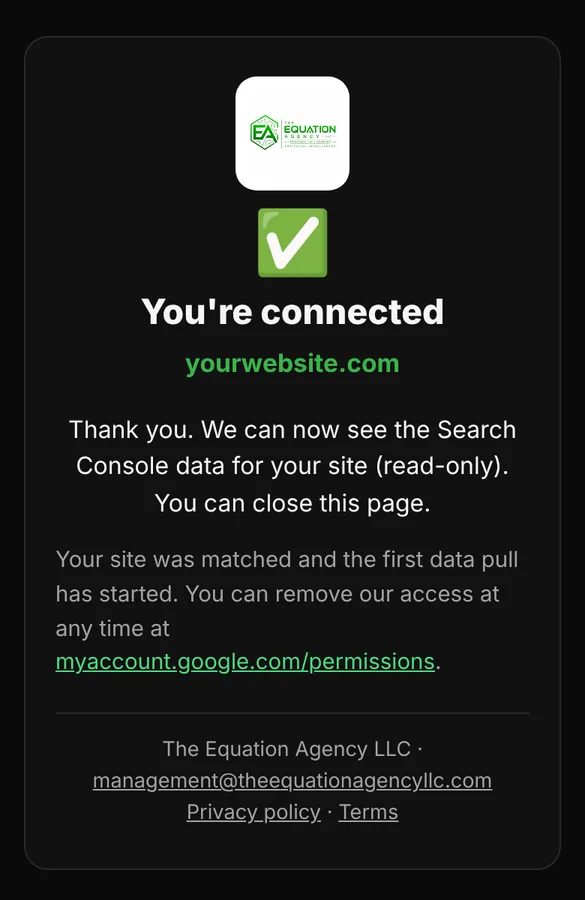
You are done
Our page says "You're connected" with your website's name. You can close it.
Your numbers reach us within minutes. You will see them in your next report from us. There is nothing else to do.
Tip: do all the steps in one go, in the same browser. For your safety, a sign-in must be finished within 15 minutes. Your link from us works for 7 days and can be used once.
If Something Goes Wrong
Nothing you do here can harm your website or your Google account. If a step does not work, our page tells you why. Here is what each message means and what to do:
| The message says | What to do |
|---|---|
| "This link has expired" | Links work for 7 days. Write or call us and we will send a new one. |
| "This link was already used" | You are probably connected already. If you are not sure, ask us. We can check in seconds. |
| "This sign-in took too long" | A sign-in must be finished within 15 minutes. Open the link in our email again and start over. |
| "Please start again in this browser" | The sign-in started in another browser or window. Open the link again and finish in the same one. |
| "Search Console access was not allowed" | The box in Step 4 was not ticked. Open the link again and leave the box ticked. |
| "Nothing was connected" | You tapped Cancel on Google's page. Open the link again when you are ready. |
| Google says the browser is not supported | Copy the link and open it in Safari (iPhone) or Chrome (Android or computer). |
| Google shows a warning that it has not finished checking our app | Stop there and call or email us. We will help you. |
Signed in with the wrong Google account? No harm is done. We will see that your website is not there and let you know. You can remove that connection (see How to Remove Our Access) and use the right account.
You do not have Search Console at all? Tell us. If we manage your website, we set it up for you. If not, we walk you through it on a short call.
What We Can See, and What We Cannot
We can see
- How often your website shows up on Google, and how often people click it.
- The words people search to find you.
- Your most visited pages from Google.
- Which pages Google has saved, and when Google last visited them.
- The page lists (sitemaps) you gave Google, and any errors in them.
- The email address of the Google account you connect, so we know who connected.
We cannot
- Change anything in Search Console.
- Change anything on your website.
- Change anything in your Google account.
- See your password, emails, files, photos or contacts.
- Use your Gmail, Google Drive, YouTube or any other Google product.
- Post, delete or buy anything for you.
The Words in Your Reports
Once you are connected, our reports use a few Google words. Here is what they mean:
- Impressions: how many times your website showed up in Google's results.
- Clicks: how many times someone clicked on your website in those results.
- Click-through rate (CTR): out of 100 people who saw you, how many clicked.
- Position: your average place in Google's list. Position 1 is the top.
- Indexed: Google has saved the page and can show it to people. A page that is not indexed cannot be found on Google.
- Sitemap: a list of your pages that helps Google find them all.
How We Protect Your Data
- Locked up. The permission Google gives us and your Google email address are stored encrypted (AES-256-GCM). Encrypted means scrambled, so only our own system can read them.
- Only our team. Our team signs in to our private system with a passkey. Nobody else can see your numbers.
- Kept for a short time. We keep daily numbers for at most 120 days.
- Never sold. We do not sell your data, use it for advertising, or share it with anyone except the company that hosts our private systems (Cloudflare).
- Not used for AI. We do not send your Search Console data to an artificial intelligence (AI) model, and we do not use it to train one.
All the details are in our Privacy Policy, Section 14: Google User Data. Our use of information received from Google APIs follows the Google API Services User Data Policy, including the Limited Use requirements.
How to Remove Our Access
You are always in control. You can take our access away at any time, for any reason. It takes about a minute.
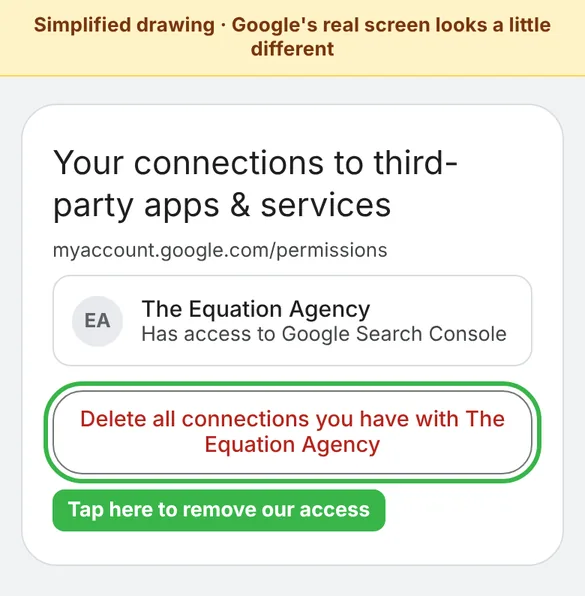
- Go to myaccount.google.com/permissions. Sign in with the same Google account you connected.
- Find The Equation Agency in the list of apps and tap it.
- Tap Delete all connections you have with The Equation Agency and confirm.
Or simply write or call us, and we remove it for you.
When access is removed, we stop reading your data. If you ask, we also delete the permission, your Google email address and the Search Console numbers we keep for your website.
Common Questions
Yes. You sign in on Google's own page, and Google asks you to allow it. We only get permission to look at your Search Console numbers. We cannot change anything, and you can remove our access at any time.
No. The connection is read-only. Nothing on your website, in Search Console or in your Google account changes.
No, never. If Google asks for your password, you type it on Google's own page. We never see it, and we will never ask you for it.
Yes. It works on any phone, tablet or computer. On a phone, open the link in Safari (iPhone) or Chrome (Android).
About 2 minutes. Your numbers reach us within minutes after you finish.
No. Search Console is free from Google, and connecting it to us costs you nothing.
No. We only see your website's Search Console numbers and the email address of the account you connect. We cannot open your emails, files, photos or anything else in your Google account.
The person whose Google account has the website in Search Console. If you are not sure who that is, call us and we will help you find out.
It is the same company. Google shows the short name of our app. Our full name is The Equation Agency LLC, based in Aventura, Florida.
Remove our access at myaccount.google.com/permissions, or tell us and we do it for you. If you ask, we also delete the data we keep for your website.
You can only connect through a link we send you. There is no public sign-up: this connection is for our clients and our own team.
Privacy Policy and Terms
- Privacy Policy (Google user data: Section 14)
- Terms of Service
Questions? We Are Happy to Help
Call us and we will walk you through it, step by step. Or write to us. We answer every question about your data.
The Equation Agency LLC
Aventura, FL 33180
Phone: 786-669-8945
Listed On The World's Leading Agency Directories
Check our profile, see our services, and book a call when you're ready.